
Accurate data is the foundation of successful digital marketing. Whether you’re measuring website traffic, tracking conversions, monitoring user interactions, or evaluating marketing campaigns, collecting reliable data is essential for making informed decisions.
Google Tag Manager (GTM) simplifies this process by allowing you to deploy and manage tracking codes without repeatedly modifying your website’s source code. Instead of relying on developers for every tracking update, marketers and website owners can implement, test, and manage tags through a user-friendly interface.
From installing Google Analytics 4 and Google Ads conversion tracking to monitoring button clicks, form submissions, and custom events, Google Tag Manager provides a flexible and efficient way to manage website tracking.
In this guide, you’ll learn what Google Tag Manager is, how it works, why it matters, and how to use it to support your SEO, analytics, and digital marketing efforts.
What Is Google Tag Manager?
Google Tag Manager is a free tag management system developed by Google that allows you to deploy and manage tracking codes, known as tags, on your website or mobile application without manually editing the site’s code for every update.
Traditionally, adding tracking scripts required modifying your website’s source code whenever a new analytics tool, advertising platform, or marketing service was introduced. This process often depended on developers, increased the risk of coding errors, and made ongoing maintenance more time-consuming.
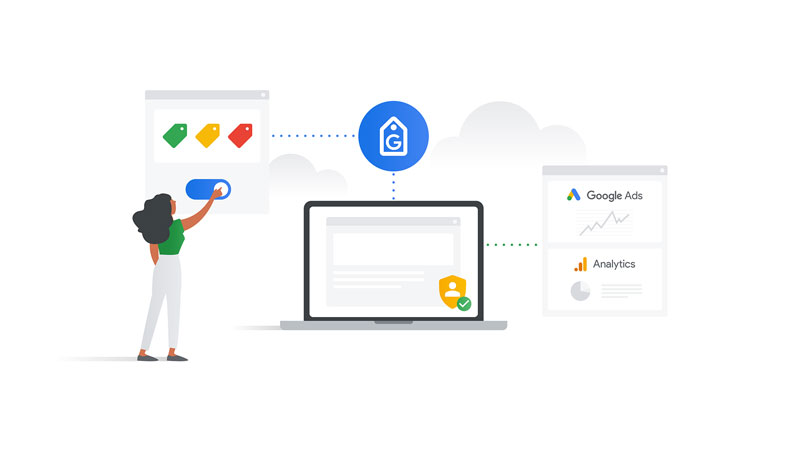
Google Tag Manager solves this problem by acting as a central management platform for your tracking tags. Once the GTM container is installed on your website, you can add, update, test, or remove many tracking tags directly from the GTM interface.
Common tags managed through Google Tag Manager include:
- Google Analytics 4
- Google Ads Conversion Tracking
- Google Ads Remarketing
- Google Floodlight
- Meta Pixel
- LinkedIn Insight Tag
- Microsoft Advertising UET Tag
- Custom HTML tags
- Custom JavaScript
Because GTM supports both Google’s products and many third-party marketing tools, it has become one of the most widely used tag management solutions for modern websites.
Why Google Tag Manager Is Important
Modern websites often rely on multiple tracking platforms to measure marketing performance and user behavior.
Without a tag management system, every new tracking code requires changes to the website’s source code. As websites grow, this process becomes increasingly difficult to manage.
Google Tag Manager simplifies website tracking by allowing you to manage many tracking implementations from a single platform.
Some of its biggest advantages include:
- Faster deployment of tracking codes
- Reduced dependence on developers for routine updates
- Easier implementation of marketing and analytics tools
- Improved organization of tracking configurations
- Built-in testing before publishing changes
- Version history for easy rollback
- Better collaboration among marketing, development, and analytics teams
- Support for advanced event tracking without repeatedly editing website code
Whether you’re tracking purchases, newsletter sign-ups, outbound link clicks, or video engagement, Google Tag Manager helps streamline the implementation process while reducing the likelihood of tracking errors.
Who Should Use Google Tag Manager?
Google Tag Manager is useful for anyone responsible for collecting website data or managing digital marketing campaigns.
It is particularly valuable for:
- SEO professionals who track user interactions.
- Digital marketers who measure campaign performance.
- PPC specialists who implement advertising conversion tracking.
- Website owners who monitor visitor behavior.
- Analytics professionals who manage tracking implementations.
- E-commerce businesses that measure customer journeys.
- Marketing agencies that handle multiple client websites.
- Developers who look to simplify tag deployment and maintenance.
Even small websites can benefit from GTM by making analytics implementation more organized and easier to maintain.
How Google Tag Manager Works
Google Tag Manager acts as a layer between your website and the various marketing or analytics platforms that collect data.
Instead of placing multiple tracking scripts throughout your website, you install a single GTM container.
Once the container is installed, Google Tag Manager controls when individual tracking tags should load and what information they should collect.
The process generally works as follows:
- A visitor loads your website.
- The GTM container loads.
- GTM checks whether any predefined conditions have been met.
- If those conditions are satisfied, the appropriate tags are triggered.
- The collected data is sent to platforms such as Google Analytics, Google Ads, or other marketing tools.
This centralized approach makes tracking easier to manage while reducing unnecessary code changes.
Understanding the Core Components of Google Tag Manager
Google Tag Manager is built around three primary components.
Understanding these concepts makes it much easier to create reliable tracking setups.
A. Tags
A tag is a snippet of code or tracking instruction that collects data and sends it to another platform.
Examples include:
- Google Analytics page view tracking
- Google Ads conversion tracking
- Meta Pixel events
- LinkedIn Insight Tag
- Custom HTML scripts
Every time a specific action occurs, the corresponding tag can send data to the appropriate platform.
B. Triggers
A trigger determines when a tag should fire.
Instead of loading every tag on every page, triggers ensure tracking occurs only when certain conditions are met.
Examples include:
- Page views
- Button clicks
- Form submissions
- File downloads
- Scroll depth
- Video interactions
- Purchase confirmation pages
Triggers improve data accuracy by ensuring events are recorded only when they actually occur.
C. Variables
Variables provide additional information that tags and triggers use during execution.
They can store values such as:
- Page URL
- Page title
- Click text
- Click URL
- Form ID
- User-defined values
Variables make your tracking setup more dynamic by allowing tags to collect detailed information about user interactions.
Google Tag Manager vs. Google Analytics
Google Tag Manager and Google Analytics are often confused because they frequently work together, but they serve very different purposes.
Google Tag Manager manages how tracking data is collected, while Google Analytics analyzes the data after it has been collected.
| Google Tag Manager | Google Analytics |
|---|---|
| Deploys and manages tracking tags. | Analyzes collected website data. |
| Controls when tracking occurs. | Reports user behavior and website performance. |
| Does not generate traffic reports. | Provides detailed analytics reports. |
| Simplifies tracking implementation. | Helps measure marketing and business performance. |
| Supports many third-party platforms. | Focuses on analyzing visitor activity. |
In many cases, Google Analytics is installed using Google Tag Manager. GTM handles the implementation, while Google Analytics processes and reports the collected data.
Google Tag Manager vs. Google Analytics vs. Google Search Console
Although these three Google tools are commonly used together, each serves a different purpose within a digital marketing strategy.
| Google Tag Manager | Google Analytics | Google Search Console |
|---|---|---|
| Manages tracking implementation. | Measures user behavior after visitors arrive. | Measures website performance in Google Search. |
| Deploys tracking tags and events. | Reports traffic, engagement, and conversions. | Reports impressions, clicks, rankings, and indexing. |
| Supports multiple marketing platforms. | Focuses on visitor interactions. | Focuses on search visibility and technical SEO. |
| Collects data for analytics tools. | Analyzes collected website data. | Helps improve organic search performance. |
Together, these platforms provide a complete view of your website.
Google Search Console helps you understand how users find your website through Google Search.
Google Analytics reveals what visitors do after they arrive.
Google Tag Manager ensures that the tracking needed to measure those interactions is implemented accurately and efficiently.
Using all three tools together creates a reliable foundation for SEO, analytics, and digital marketing, enabling better decisions based on complete and trustworthy data.
Learn more about Google Search Console and Google Analytics.
How to Set Up Google Tag Manager
Setting up Google Tag Manager is a straightforward process that can significantly simplify how you manage tracking codes on your website. Once the GTM container is installed, you can add, modify, and organize tracking tags without repeatedly editing your website’s source code.
1. Create a Google Tag Manager Account
To get started, sign in to Google Tag Manager using your Google account and create a new account for your business or organization.
During setup, you’ll be asked to provide:
- Account name
- Country
- Container name
- Target platform
For most users, the target platform will be ‘Web’, although GTM also supports Android, iOS, server-side tagging, and AMP.
2. Create a Container
A container stores all the tags, triggers, and variables used for a website or application.
Most websites only require one container, making it easier to organize tracking configurations in a single location.
Once your container is created, Google Tag Manager generates two snippets of code that must be added to your website.
3. Install the GTM Container
The GTM container code needs to be placed on every page of your website.
There are several installation methods available:
I. Manual Installation
Developers can add the GTM code directly to the website’s HTML by placing the required snippets in the recommended locations.
II. Content Management Systems
Many website platforms provide plugins or built-in integrations for Google Tag Manager.
Popular platforms include:
- WordPress
- Shopify
- Wix
- Squarespace
- Joomla
- Magento
These integrations simplify the installation process and often require only your GTM Container ID.
After installation, GTM becomes the central location for managing your website’s tracking tags.
Understanding the GTM Workspace
The GTM dashboard is organized into several sections that work together to manage tracking.
Some of the most important areas include:
- Workspace
- Tags
- Triggers
- Variables
- Folders
- Templates
- Versions
- Admin
Understanding these sections makes it easier to build, organize, and maintain your tracking setup.
Creating Your First Tag
A tag tells Google Tag Manager what data should be collected and where it should be sent.
One of the most common first tags is the Google Analytics 4 Configuration tag.
Creating a tag generally involves three steps:
- Choose a tag type.
- Configure the required settings.
- Select a trigger that determines when the tag should fire.
Once published, the tag begins collecting data according to your configuration.
Google Tag Manager also supports many third-party templates, making it easy to integrate marketing and analytics platforms without writing custom code.
Creating Triggers
Triggers determine when a tag should activate.
Without a trigger, a tag will never fire.
Google Tag Manager includes several built-in trigger types.
1. Page View Trigger
Fires when a page loads.
This trigger is commonly used for:
- Google Analytics
- Google Ads
- Meta Pixel
- General page tracking
2. Click Trigger
Tracks user clicks on specific elements.
Examples include:
- Download buttons
- Navigation links
- External links
- Call-to-action buttons
3. Form Submission Trigger
Records when visitors submit forms, such as:
- Contact forms
- Newsletter subscriptions
- Quote requests
- Lead generation forms
4. Scroll Depth Trigger
Measures how far users scroll down a page.
This helps evaluate content engagement, particularly for long-form articles.
5. Custom Event Trigger
Allows advanced tracking based on custom events generated by your website or application.
Custom events provide flexibility for tracking unique user interactions that standard triggers cannot capture.
Using Variables
Variables make your tracking more dynamic by storing information that tags and triggers can use.
Google Tag Manager provides two main types of variables.
1. Built-In Variables
These are predefined variables that can be enabled with a single click.
Common examples include:
- Page URL
- Page Path
- Page Hostname
- Click Text
- Click URL
- Click Classes
- Form ID
- Form Classes
2. User-Defined Variables
These are custom variables created to meet specific tracking requirements.
Examples include:
- Custom JavaScript variables
- Data Layer variables
- URL variables
- Cookie variables
- Constant variables
Variables allow you to create more precise tracking without duplicating tags or triggers.
Testing Changes with Preview Mode
One of Google Tag Manager’s most valuable features is Preview Mode.
Before publishing changes, Preview Mode allows you to test your tracking configuration in a safe environment.
During testing, you can verify:
- Which tags fired
- Which tags did not fire
- Which triggers were activated
- Variable values
- Data Layer events
Testing before publishing helps prevent inaccurate data collection and reduces implementation errors.
Whenever you create new tags or modify existing ones, Preview Mode should be part of your workflow.
Publishing Your Changes
Changes made inside Google Tag Manager are not immediately applied to your website.
Instead, they remain in your workspace until you publish a new container version.
Publishing creates a new version of your container that becomes active on your website.
This workflow provides an opportunity to review changes, test configurations, and ensure everything functions correctly before deployment.
Version History
Every published container creates a new version.
Version history allows you to:
- Review previous configurations.
- Compare changes.
- Restore earlier versions if necessary.
- Troubleshoot unexpected issues.
This feature is particularly valuable for larger teams managing complex tracking implementations.
Workspaces
Google Tag Manager supports multiple workspaces, allowing several team members to work simultaneously without interfering with each other’s changes.
For agencies and larger organizations, workspaces simplify collaboration while reducing the risk of conflicting updates.
Different workspaces can be used for:
- SEO tracking
- Advertising campaigns
- Analytics implementation
- Development testing
Once changes are reviewed, they can be merged into the main container.
User Permissions
Not every team member requires full administrative access.
Google Tag Manager allows you to assign different permission levels based on individual responsibilities.
Common permission levels include:
- Read access
- Edit access
- Approve access
- Publish access
- Administrator access
Using appropriate permissions helps protect your tracking setup while allowing team members to contribute safely.
For businesses working with external agencies or freelancers, permission management also improves security by limiting unnecessary access to critical tracking configurations.
Using Google Tag Manager with Google Analytics 4
One of the most common uses of Google Tag Manager is implementing Google Analytics 4 (GA4). Instead of adding the Google Analytics tracking code directly to your website, GTM allows you to manage GA4 through its interface, making future updates and event tracking much easier.
After creating a Google Analytics 4 property, you can add a Google Analytics tag in GTM and connect it using your Measurement ID. Once published, Google Analytics begins collecting website data without requiring additional code changes.
Managing Google Analytics through GTM also makes it easier to add custom events, modify tracking configurations, and expand your analytics setup as your website grows.
Tracking User Interactions
Understanding how visitors interact with your website helps improve user experience, measure engagement, and evaluate marketing performance.
Google Tag Manager makes it possible to track a wide variety of user actions without modifying your website’s source code each time.
1. Button Click Tracking
Call-to-action buttons often represent important user interactions.
Examples include:
- Contact Us
- Get a Quote
- Subscribe
- Download Now
- Buy Now
Tracking button clicks helps measure how effectively these elements encourage users to take action.
2. Form Submission Tracking
Forms are commonly used to generate leads, collect inquiries, or build email lists.
Google Tag Manager allows you to monitor form submissions such as:
- Contact forms
- Newsletter subscriptions
- Demo requests
- Appointment bookings
- Lead generation forms
This information helps businesses evaluate the effectiveness of their conversion strategy and identify opportunities for improvement.
3. Scroll Tracking
Not every visitor reads an entire page.
Scroll tracking measures how far users move down a page, providing insight into content engagement.
For long-form articles, this information can help answer questions such as:
- Do visitors read the entire article?
- Where do readers lose interest?
- Which pages keep users engaged?
These insights can guide content improvements and page layout optimization.
4. File Download Tracking
Many websites offer downloadable resources, including:
- PDF guides
- White papers
- Brochures
- Checklists
- Templates
Tracking downloads helps measure interest in these resources and evaluate their contribution to lead generation or user engagement.
5. Video Engagement Tracking
If your website includes embedded videos, Google Tag Manager can track interactions such as:
- Video starts
- Progress milestones
- Video completion
Understanding how visitors engage with video content helps identify topics that resonate with your audience and improve future content planning.
Implementing Advertising and Marketing Tags
Google Tag Manager supports a wide range of advertising and marketing platforms, making it easier to measure campaign performance across multiple channels.
Some of the most commonly implemented tags include:
- Google Ads Conversion Tracking
- Google Ads Remarketing
- Meta Pixel
- LinkedIn Insight Tag
- Microsoft Advertising UET Tag
- Pinterest Tag
- TikTok Pixel
Managing these tags from a single platform improves organization while reducing the need for repeated website code updates.
Supporting SEO with Google Tag Manager
Although Google Tag Manager is not a direct ranking factor, it supports SEO by helping you collect valuable data about how visitors interact with your website.
For example, GTM can help you:
- Measure engagement with important content
- Track clicks on internal navigation elements
- Monitor downloads of valuable resources
- Record interactions with videos and interactive content
- Evaluate calls to action on landing pages
This data can reveal opportunities to improve user experience, strengthen content, and optimize conversion paths.
When combined with Google Analytics and Google Search Console, Google Tag Manager provides a more complete understanding of your website’s overall performance.
Learn more about how to track SEO ROI with GA4 & Google Search Console Combined.
Best Practices for Using Google Tag Manager
A well-organized GTM container is easier to maintain, troubleshoot, and expand over time.
Consider following these best practices:
- Use clear and descriptive names for tags, triggers, and variables.
- Organize related items into folders.
- Test every change using Preview Mode before publishing.
- Publish only after verifying that tracking works correctly.
- Remove unused or outdated tags.
- Review your container periodically to keep it organized.
- Limit administrator access to trusted users.
- Document complex tracking configurations for future reference.
- Use built-in templates whenever possible instead of custom code.
- Regularly audit your tracking setup to ensure data accuracy.
Following these practices helps maintain reliable tracking while reducing implementation errors.
Common Mistakes to Avoid
Even though Google Tag Manager simplifies tracking, configuration errors can still lead to inaccurate data.
Avoid these common mistakes:
- Publishing changes without testing them first.
- Creating duplicate tags that send the same data multiple times.
- Using vague names for tags and triggers.
- Forgetting to publish container changes after testing.
- Granting unnecessary administrator access.
- Leaving outdated tags active after marketing campaigns end.
- Failing to review the version history before making major updates.
- Ignoring Data Layer implementation for advanced tracking requirements.
Regular maintenance helps ensure your analytics data remains accurate and trustworthy.
Final Thoughts
Google Tag Manager has transformed the way websites implement and manage tracking technologies. By separating tracking implementation from your website’s source code, it gives marketers, analysts, and website owners greater flexibility while reducing dependence on ongoing development work.
Whether you’re deploying Google Analytics 4, tracking user interactions, measuring advertising campaigns, or implementing third-party marketing tools, Google Tag Manager provides a centralized and efficient way to manage your tracking strategy.
When used alongside Google Analytics and Google Search Console, it becomes an essential part of a data-driven digital marketing workflow. Together, these tools help you understand how users discover your website, how they interact with your content, and how to continuously improve your website’s performance.
As your website grows, regularly reviewing your tracking setup, testing new implementations, and maintaining an organized GTM container will help ensure your data remains accurate, actionable, and ready to support smarter marketing decisions.